Music Metadata: Rapid
The guides cover the exceptions where programme teams may want to publish text during broadcast, or load up text in advance of broadcast.
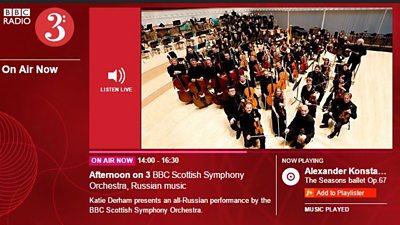
For the vast majority of programmes RAPID will work as an automated system and will need no manual intervention. RAPID will automatically publish relevant data including programme titles, descriptions and (where VCS metadata is used) Now Playing details.
The guides cover the exceptions where programme teams may want to publish text during broadcast, or load up text in advance of broadcast.
Before You Start
Go to http://rapid.radio.bbc.co.uk/ and enter your BBC log-on details. If you do not have access to Rapid, contact R&M.Support@bbc.co.uk.
Quick Guides
Add Now Playing Music Details: Playout
In the Live tab use the Playout box, next to RAPID Live, to add ‘Now Playing’ track details.
1. Select Options - Under the Live tab in the Playout box, you can select from the below:
- Playout_R3 - Tracks from VCS
- NP_Live_R3 - Tracks entered in the Live Console
Make sure the Manual option is switched to On for NP_Live_R3. To add a track using the Live Console, click on the + button and an entry grid will appear.
2. Enter Music Details - The dropdown on the top left should default to Pop, click to select Classic. Enter the song Title and Artist/Composer details.
3. Schedule - Select Now for the details to be published immediately, or Unscheduled if you want to add the details now but publish them at a later time.
Enter the Duration to cover the length of time the track will be played. N.B. You may need to double click to get the cursor to appear in the grid. Enter the duration to cover the length of time the track will be played.
If there are contributors (such as Soloists, Conductors or additional Composers), click on the + button almost immediately above the grid. If you add more than one type of contributor, you can order the rows, using the up and down arrow buttons.
Click on the grey Add button and the Now Playing data will appear in the Current box if it has been set to publish immediately or in the Queued box if it has been unscheduled. Tracks in the Queued section can be made live, by clicking on the Make Live button that appears next to the track.
Optional Functions
- Making Changes - If you notice an error in the queued track simply click on it once to highlight it then click on the pen icon to edit the track. You can do this while a track is queued before playout.
Once a track is live, please do not edit the track as it will duplicate the track in other systems. Best practise would be to double check the title, artist, composer and duration before making a track live.
If a duplicate track appears on the programme page, it will need to be corrected using iBroadcast2. For more information see the iBroadcast guide to Segments and Tracklistings.
Delete - To delete a track, click on it once to select it then click on the dustbin icon. This only removes the track from Livetext and RAPID – the duration you originally set will persist on programme pages and any modification will need to be done by iBroadcast2.
Downloads
Music Metadata

Classical Style Guide
A quick reference to classical music metadata standards on BBC Radio.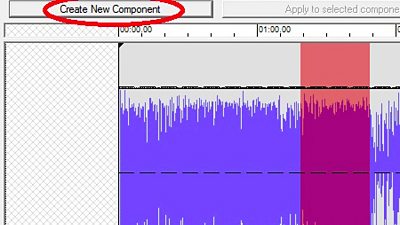
Dira: Genealogy
How to upload entire music programmes into Highlander.
Dira: Live Music
How to create a Take Data Card and complete metadata for live music in Highlander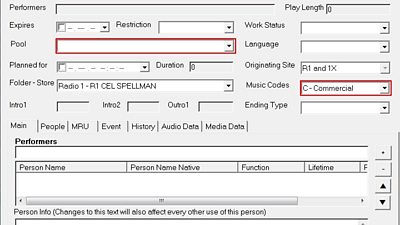
Dira: Music Tracks
How to create a Take Data Card and add metadata for an individual music track.
Musicbrainz
How to add artists and works in Musicbrainz.
Rapid
A guide to using Rapid to create music metadata.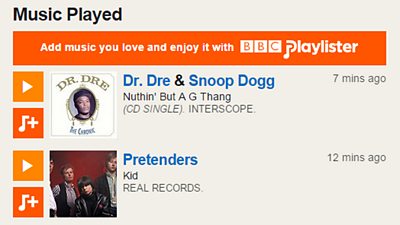
Segments / Tracklists
Creating segments and tracklists in iBroadcast2.
